Local Devices
Connecting devices, checking device status and properties, per-device configuration, and searching device history.
The Local Devices tab is the primary workspace in Clear, shown by default when the app launches. It gives a consolidated view of all detected storage devices, so you can review properties, check health and status, and search device records.
Connecting local devices
Clear automatically detects storage devices connected through supported interfaces: SATA, NVMe, USB, and SCSI. Detected devices appear in the Local Devices tab.
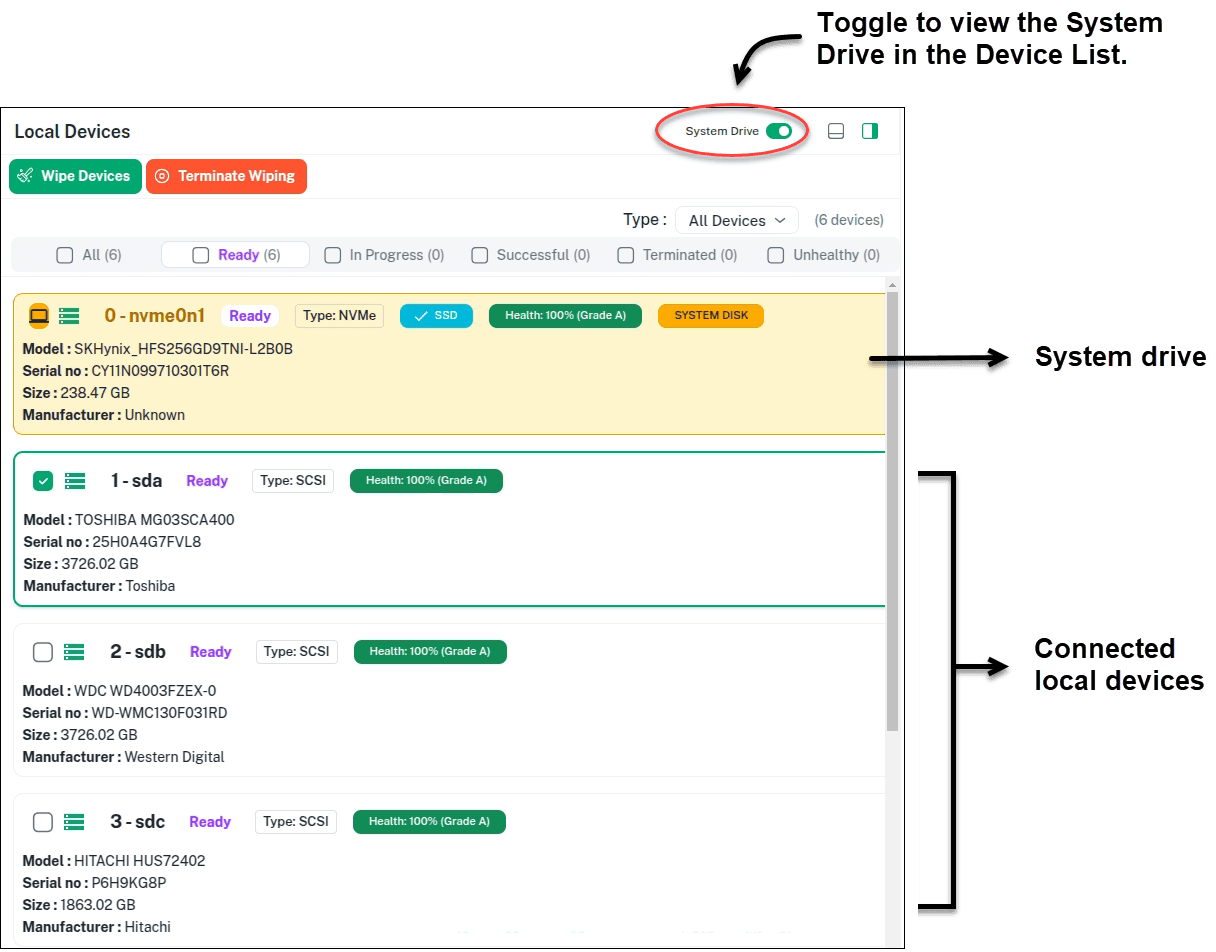
The System Drive toggle in the top-right corner lets you show or hide the operating system drive — a safety feature to prevent accidentally selecting it.
Device information and status
Clear displays key information and operational status for each device:
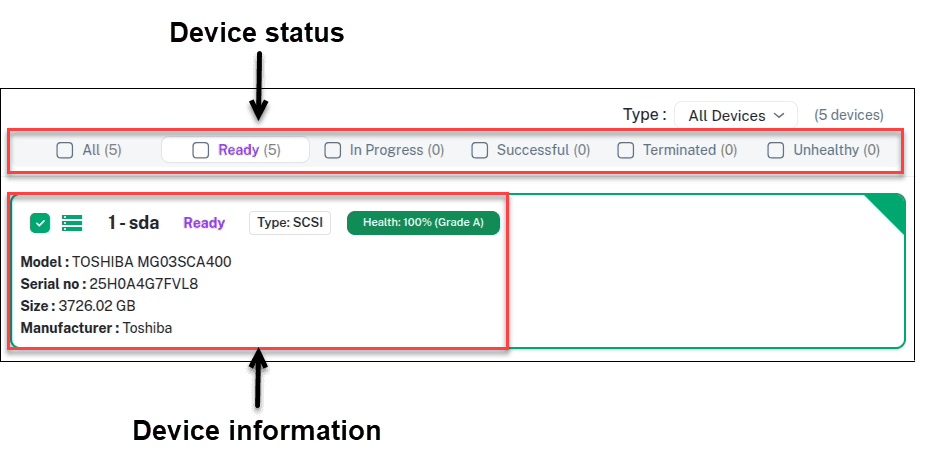
- Device details include Model, Serial number, Size, Manufacturer, Type, and health information.
- The information tab also shows whether a device is locked and requires per-device configuration before wiping.
- Devices are organized into status-based tabs, navigable with the keyboard
<and>keys:- All — every detected device
- Ready — available for wiping
- In Progress — currently being wiped
- Successful — wiped successfully
- Terminated — stopped before completion, or failed due to errors
- Unhealthy — reporting health issues that may impact wiping
Note that...
Devices flagged Unhealthy are automatically marked Terminated. Export a CSV report of these devices to identify assets that should be routed for physical shredding or alternate disposal. See Export to File (CSV).
Per device configuration
Starting with version 1.1.0, Clear supports per-device configuration for locked devices that don't allow I/O or sanitization operations. This applies to:
- Self-Encrypting Drives (SEDs) that support TCG encryption standards with locking ranges enabled.
- ATA drives that support the security command set with a security password configured.
The locked status appears in the device information tab:
- ATA security status:
Available,Disabled, orLocked. WhenLocked, a password is required before operations can proceed. - SED lock status:
trueorfalse. Whentrue, the PSID is required to reset the disk.
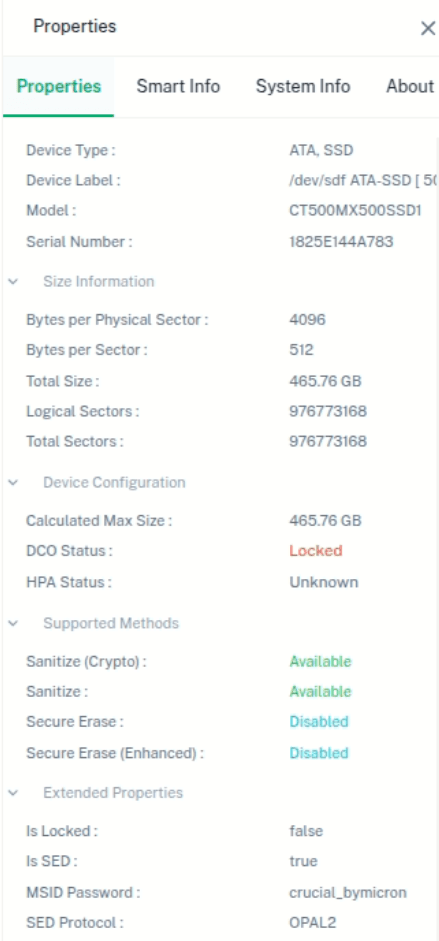
The settings icon next to a device tile lets you enter the PSID (for SEDs) or password (for ATA drives) to reset or unlock the device.

Clicking the settings icon opens the per-device configuration dialog. After entering the required information and clicking OK, the configuration is saved for that disk. Both fields are empty by default.
Device properties
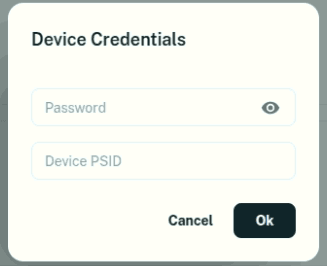
Select a device from the list to view its detailed properties in the System Information panel.
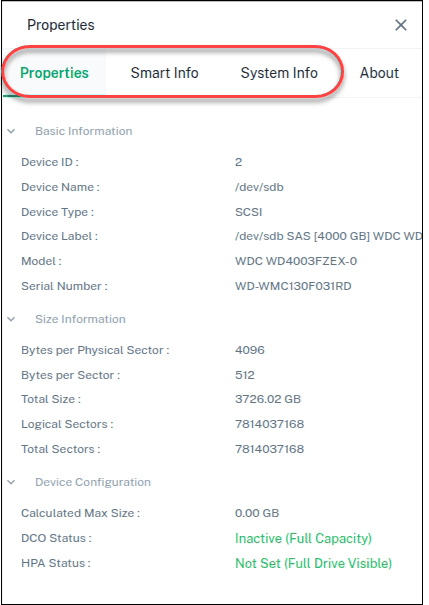
The panel provides three tabs:
- Properties — basic device details, storage capacity, and configuration attributes.
- Smart Info — additional device-level details.
- System Info — details about the host system, including OS, hardware configuration, and environment.
Device search and history
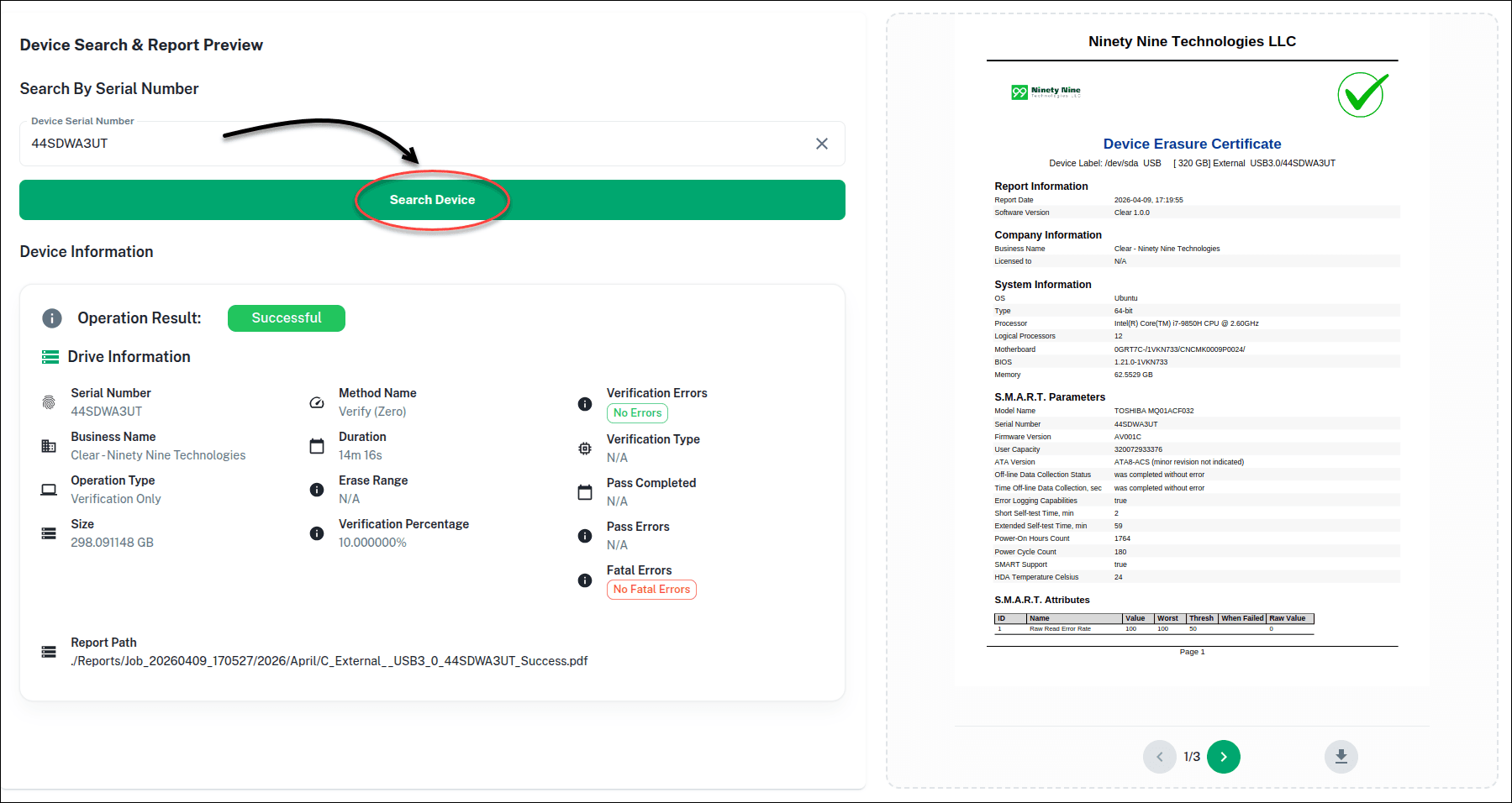
Use search to quickly locate specific devices or review previously processed ones.
Open the Search tab.
Next: Jobs