Overview and Navigation
The Clear interface layout, configuration settings, and the typical sanitization workflow.
Interface layout
The Clear interface uses a structured multi-pane layout that helps administrators quickly locate devices, monitor wiping operations, and access system information from a single workspace.
The interface consists of a Navigation Sidebar, Clear Workspace, a System Information Panel, and an Output Logs area:
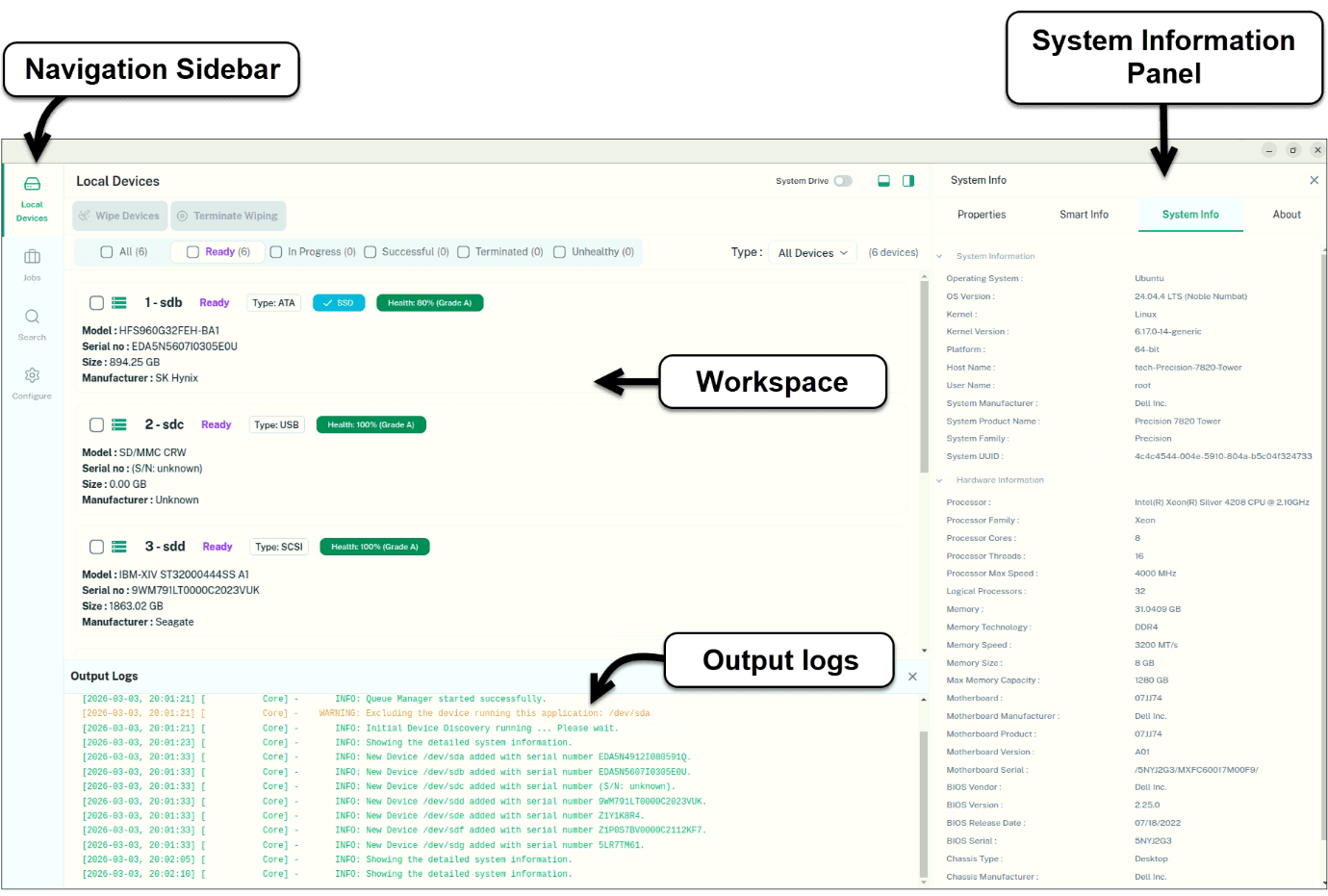
- Navigation Sidebar — access the main functional modules: Local Devices, Jobs, Search, and Configuration.
- Clear Workspace — the central workspace where you view detected devices, initiate wiping operations, monitor status, and manage jobs. It updates based on the module selected in the sidebar.
- System Information Panel — on the right side, with tabs for Device Properties, SMART Information, and System Information.
- Output Logs — at the bottom, records system messages and operational events in real time, useful for monitoring and troubleshooting.
Configuration settings
Configuration lets administrators define default behavior before starting wipe operations. It's not mandatory — if you start a wipe without configuring settings, Clear applies system defaults — but reviewing settings first is recommended. Settings can also be changed at any time.
To access Configuration, select Configuration from the sidebar. You can configure:
Wiping Methods Configuration
Default sanitization methods and execution preferences.
Device Health Configuration
Health checks and criteria used during sanitization.
Export Configuration
Report and certificate export settings.
Export to StockWise
Integration settings for exporting results to StockWise.
The typical workflow
Clear provides a structured environment: detect connected devices, configure wipe jobs using approved methods, monitor execution, and generate verifiable reports.
Connect Devices — attach the storage devices to be sanitized to the system running Clear. See Connecting Local Devices.
Select Devices — choose one or more detected devices. If a device shows as locked, configure it first. See Per Device Configuration.
Start the Wipe Job — choose the sanitization method and start the job. See Creating a Wipe Job.
Monitor Job Progress — track real-time status updates per device. See Verification and Validation.
Verify the Wipe Job — confirm the sanitization completed successfully.
Reports and Certificates — view and download sanitization reports and certificates. See Device Erasure Certificate.
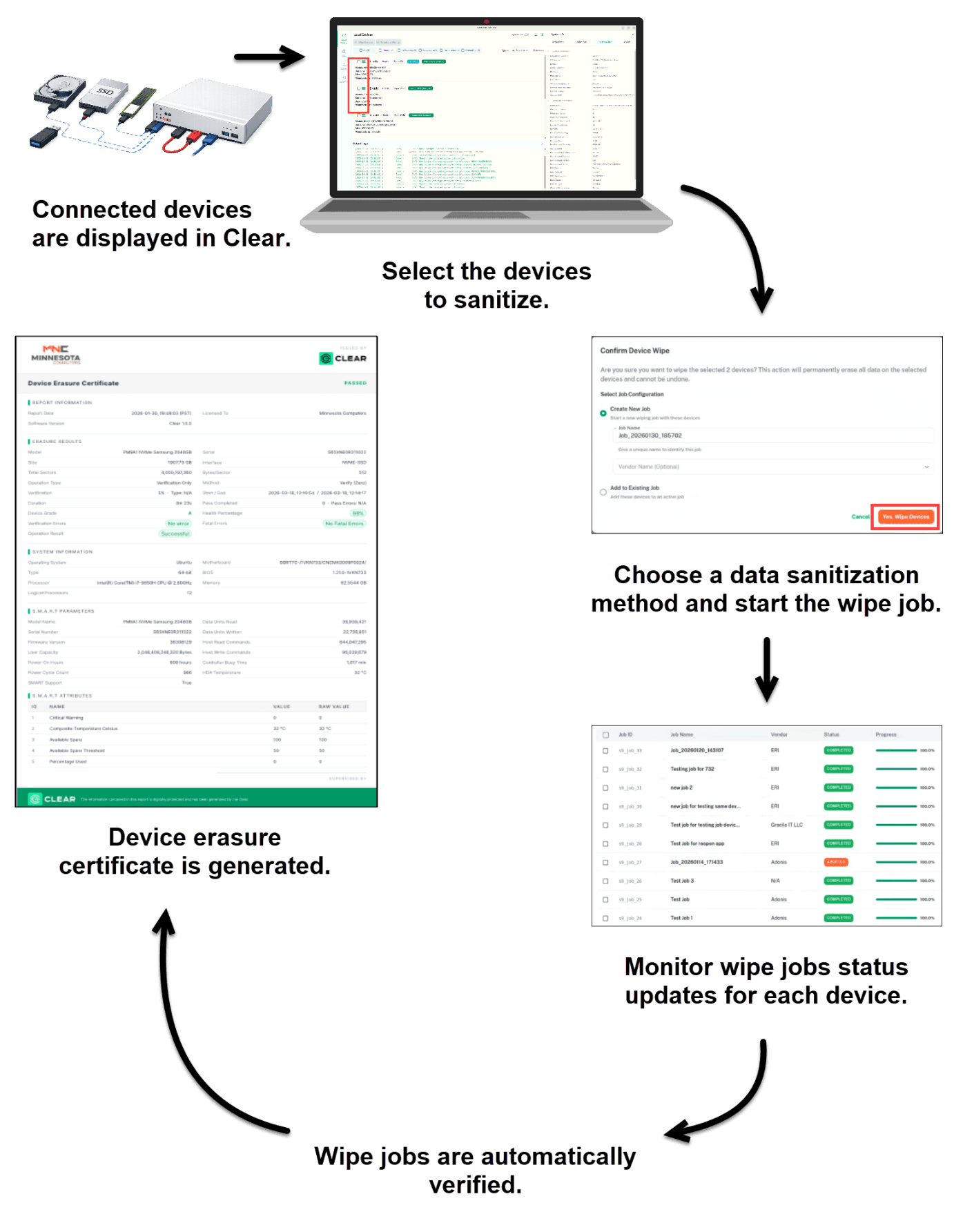
You can also review historical jobs, export reports, and configure system settings — covered in the following sections.
Next: Local Devices