Export Columns
Choose which drive, system, and custom columns appear in Clear Portal CSV exports.
The Export Columns page controls the columns in every CSV the portal produces. It has three tabs: Drive Columns, System Columns, and Custom Columns. Each tab shows how many columns are currently selected.
Click Export Columns under Configuration in the portal menu to open it.
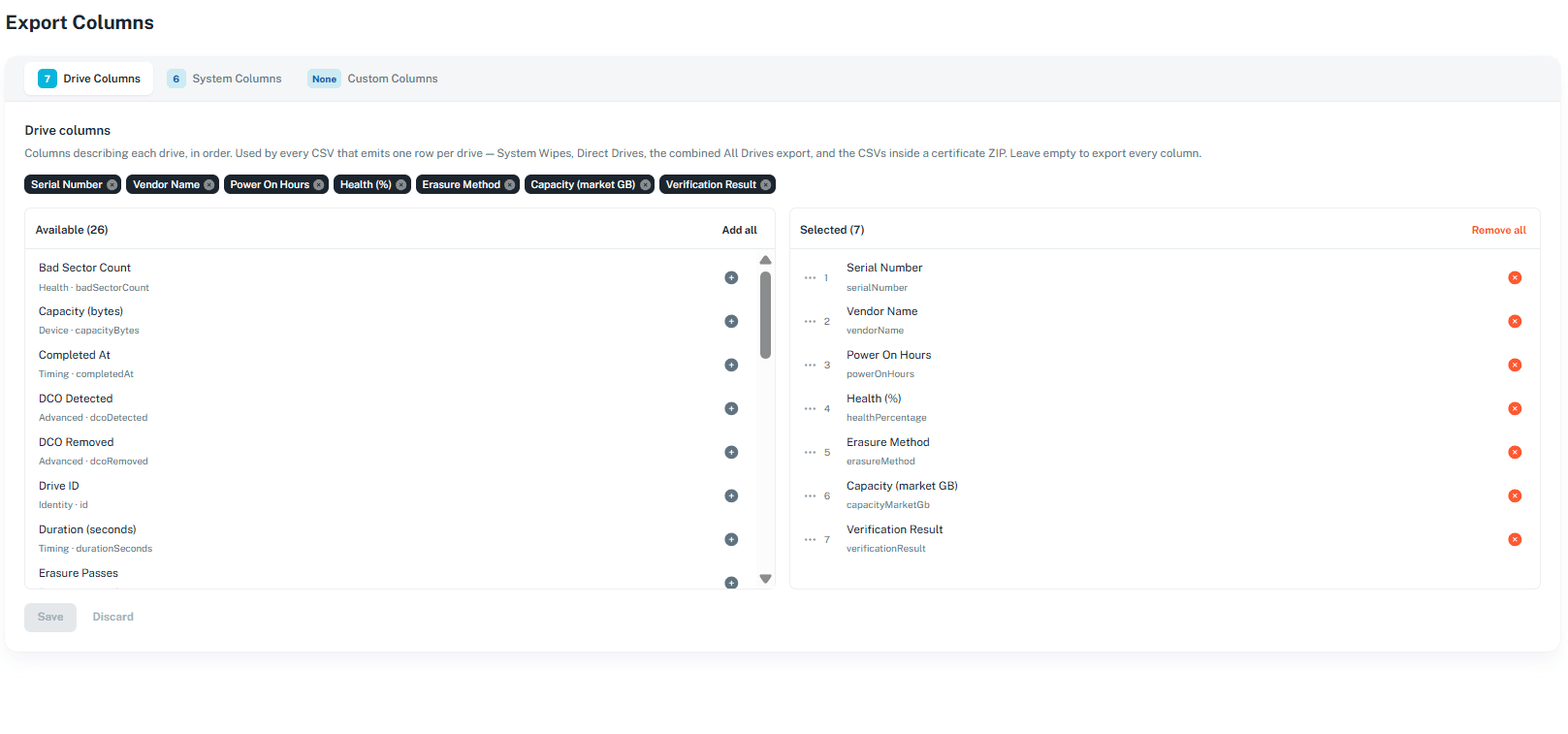
Drive Columns
Drive columns describe each drive. They are used by every CSV that has one row per drive — System Wipes, Direct Drives, the combined All Drives export, and the CSVs inside a certificate ZIP.
System Columns
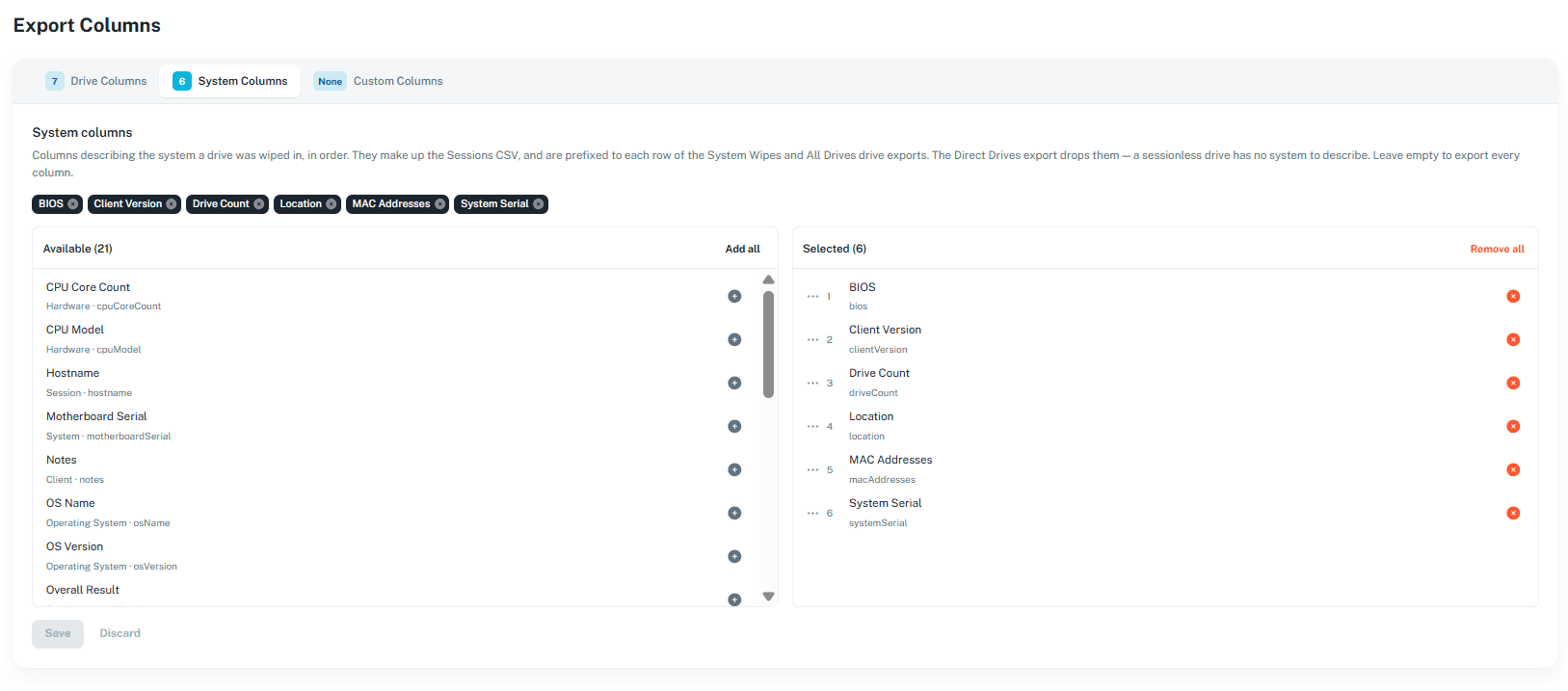
System columns describe the system a drive was wiped in. They make up the Sessions CSV and are added to the start of each row in the System Wipes and All Drives exports. The Direct Drives export does not include them, because those drives were not wiped in a system.
Choosing drive or system columns
In the Available list, click + next to a column to add it, or click Add all.
In the Selected list, click the remove icon next to a column to take it out, or click Remove all. Columns are exported in the order shown in the Selected list.
Leave the Selected list empty to export every column.
Custom Columns
Custom columns are fixed name/value pairs added to the end of every CSV export — Sessions, every drive export, and the CSVs inside a certificate ZIP. The same value is repeated on every row, so use them to describe the export itself (for example, a visual grade or batch reference) rather than a drive.
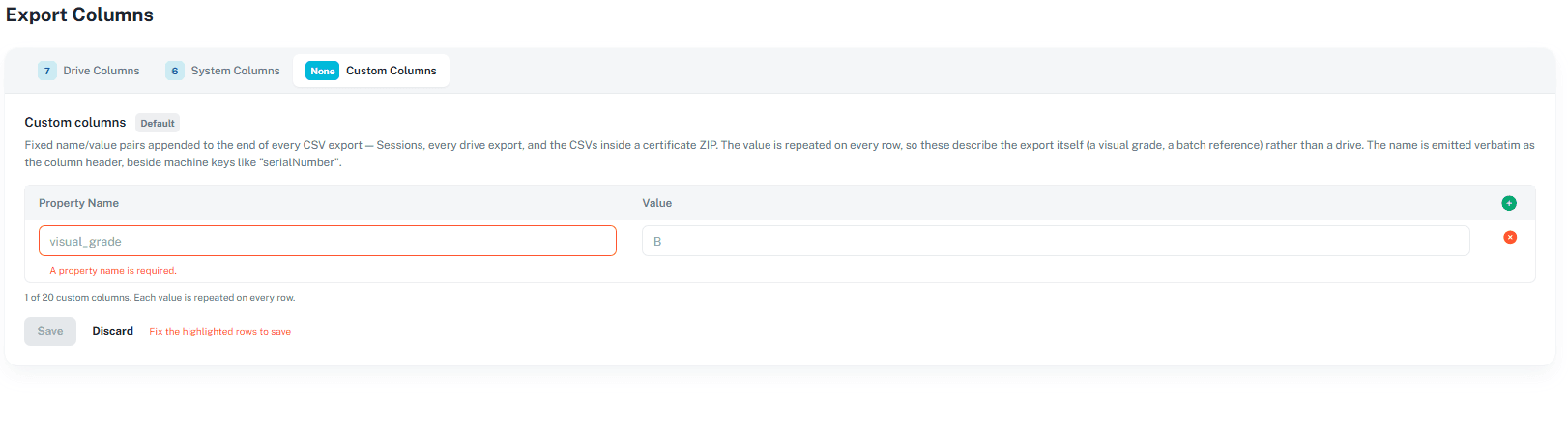
Enter a Property Name (required) and a Value. The property name is used exactly as typed for the column header.
You can add up to 20 custom columns.