Projects
Review projects, open a project's details, and export its results and certificates.
The Projects page in the Overview group lets you review the wipe results recorded under each project. To create or change projects, use Project Configuration instead.
Finding a project
Use the search bar to find a project by name, vendor, or PO.
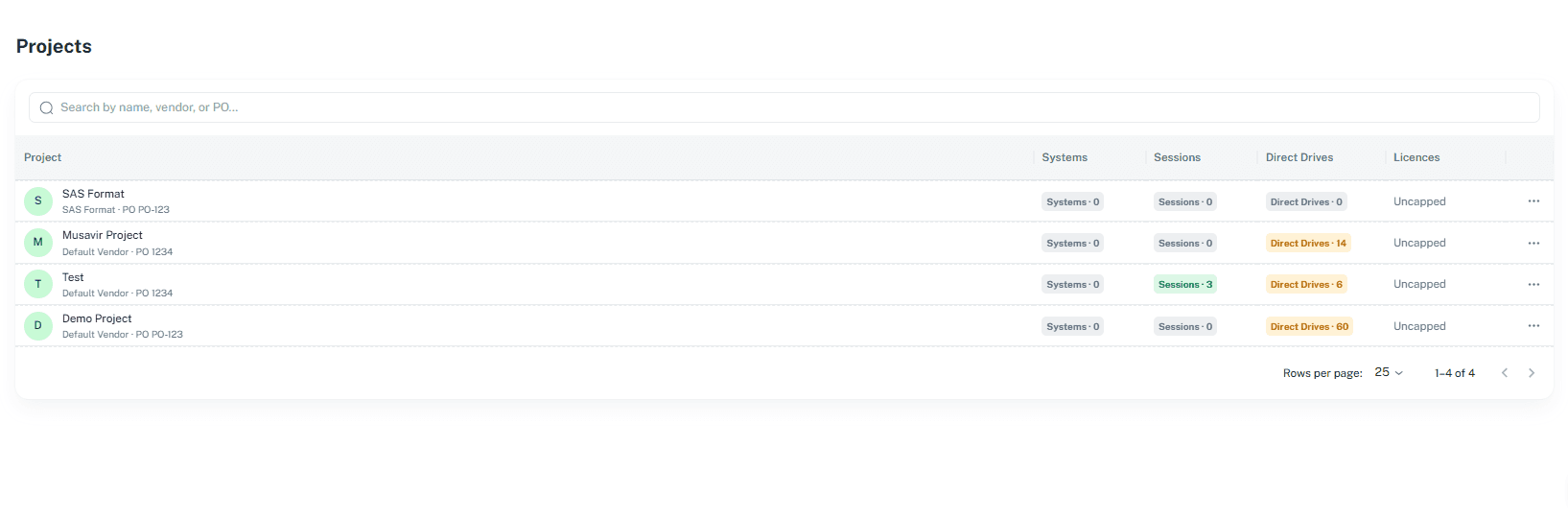
Each row shows the project name with its vendor and PO, plus counts for Systems, Sessions, and Direct Drives, and its Licences (for example, Uncapped).
Viewing project details
Select a project from the list. The project page opens with the project name and its status (for example, Active).
Review the project summary at the top: Vendor, Purchase Order, External Vendor ID, Wiping Method, Source, and Licences (quota and how many are used).
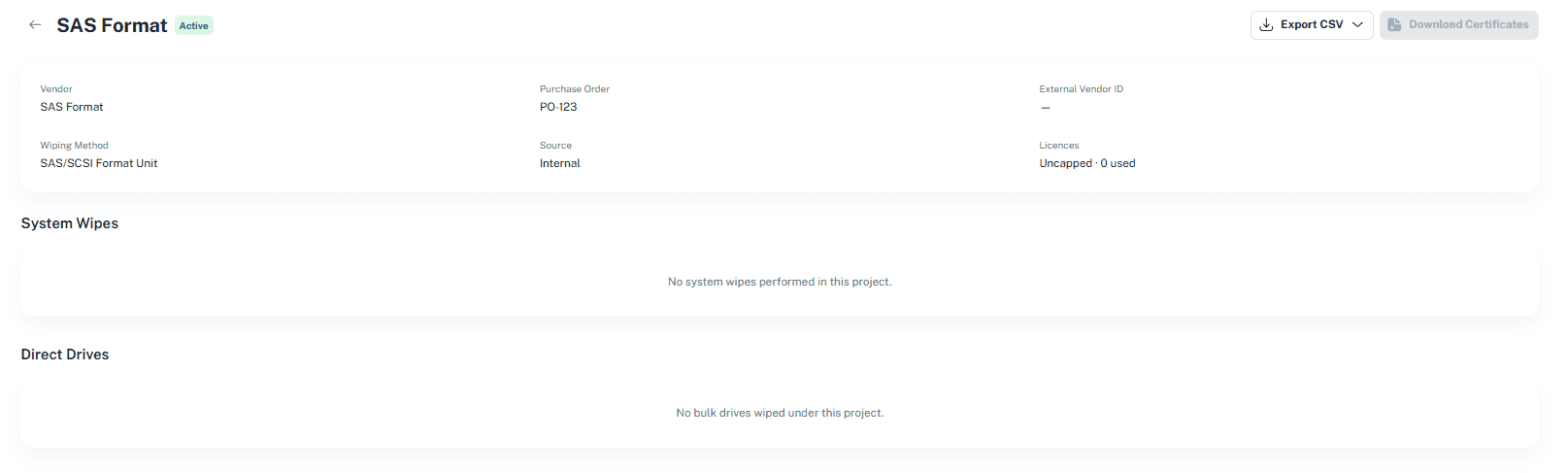
Scroll down to the System Wipes and Direct Drives sections. If nothing has been wiped yet, each section shows an empty message.
System Wipes in a project
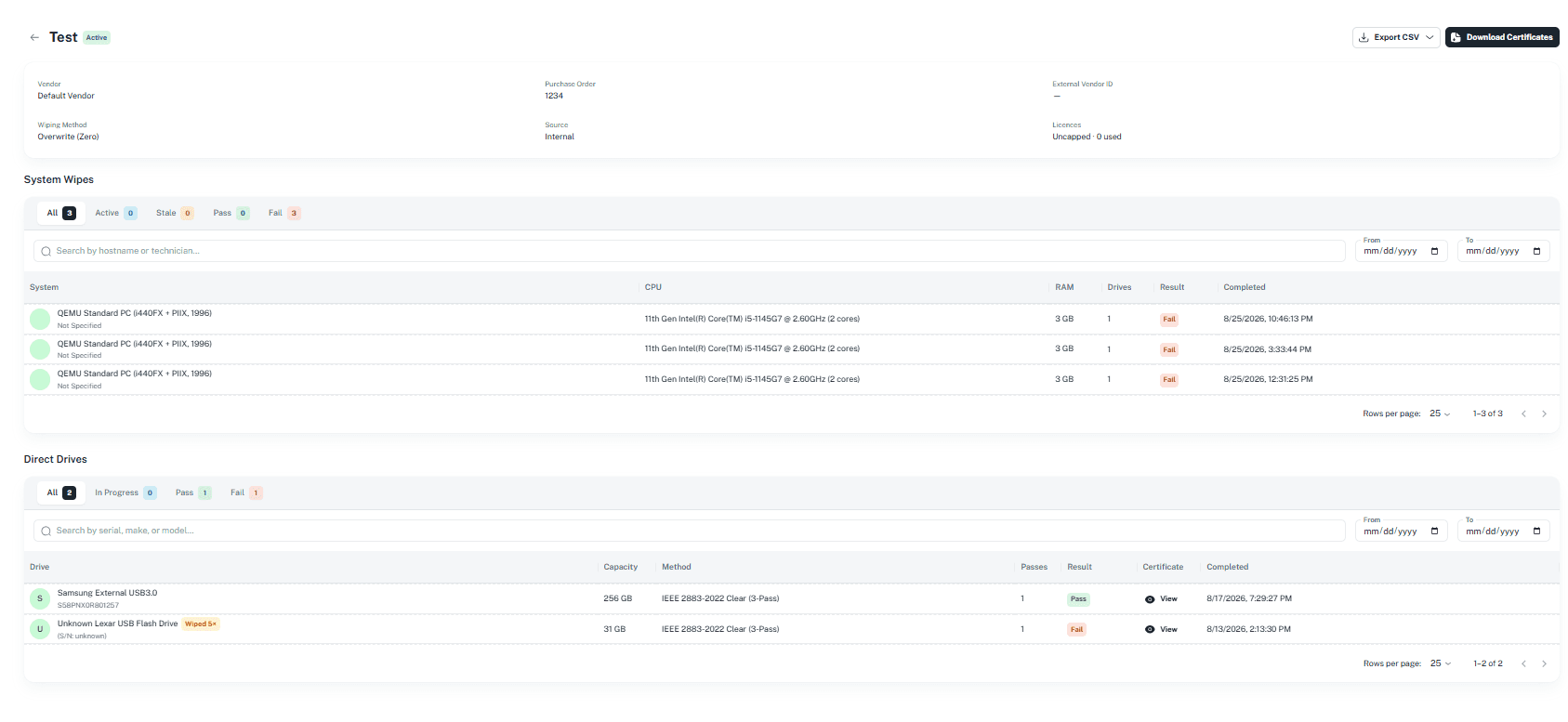
The System Wipes section lists the systems wiped under this project.
- Filter by result using the tabs: All, Active, Stale, Pass, Fail. Each tab shows its count.
- Search by hostname or technician, and narrow by date using From and To.
- Columns: System, CPU, RAM, Drives, Result, Completed.
Direct Drives in a project
The Direct Drives section lists drives wiped on their own under this project, outside a system wipe.
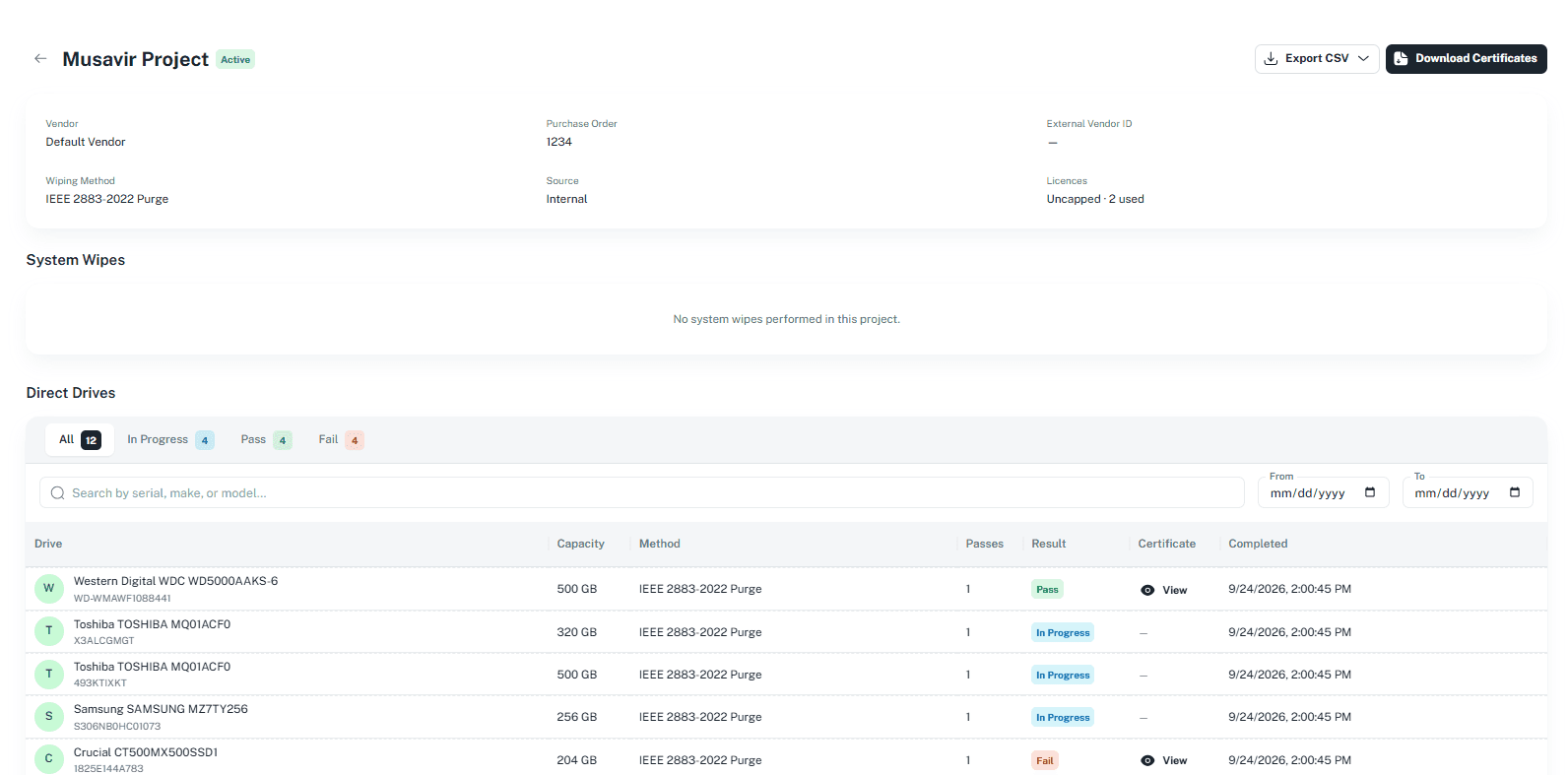
- Filter by result using the tabs: All, In Progress, Pass, Fail.
- Search by serial, make, or model, and narrow by date using From and To.
- Columns: Drive, Capacity, Method, Passes, Result, Certificate, Completed.
- Click View in the Certificate column to open a drive's certificate.
Exporting a project
Two buttons in the top right of the project page export its results:
- Export CSV — opens a menu of CSV export options.
- Download Certificates — downloads the project's certificates. The button is unavailable when the project has no wipes.
The columns included in CSV exports are set on the Export Columns page.
Next: System Wipes